About the screenshots. They come from a demo family — the names
and entries are made up. The app itself is available in 26 languages and follows
the one you pick.
1. How the app is organised
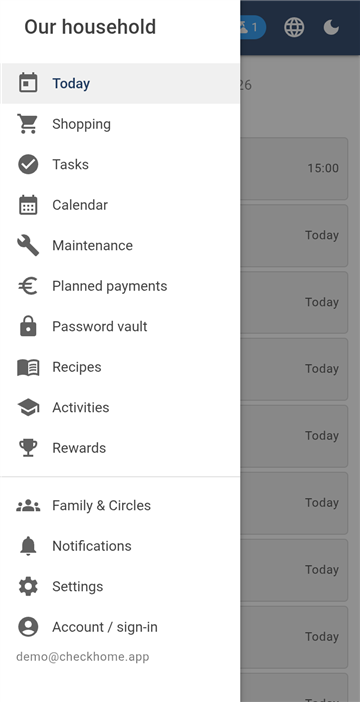
Side menu — the modules
The app is split into modules — Today, Shopping, Tasks,
Calendar, Maintenance, Planned payments, Password vault, Recipes, Activities,
Rewards and Family & Circles. You switch between them from the
side menu, opened with the icon at the top left.
Most modules have tabs inside them, and their order is the
same everywhere: first what you look at, then entry, and management last.
Typically List → Entry →
Manage. So when you are looking for where something
is added, it is the second tab; where categories are set up, it is the last.
Three controls sit at the top right at all times: refresh
(pulls fresh data from the server), language and the
light/dark toggle.
The app refreshes itself. When someone in the family
changes something on their phone, it appears on yours on its own, usually
within seconds. You only need the refresh button after a long spell
without signal.
2. First run and the family password
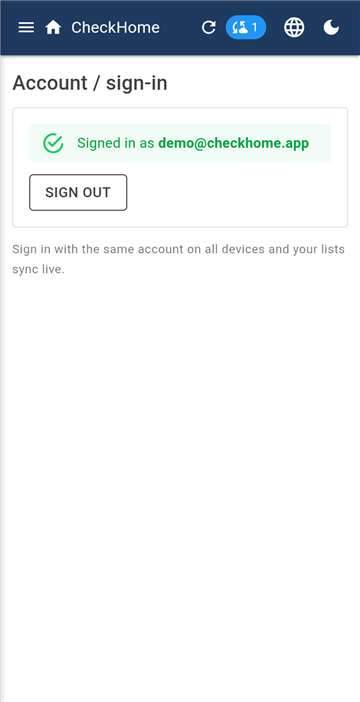
Account / sign-in
After installing, you sign in with an e-mail and password or with Google.
That creates an account and a household —
your family.
The app then asks for a family password. This is not the
same as your account password. The family password encrypts the
content you put into the app, and it does so on your own phone. It is
never sent to the server.
You enter the family password on every device in the family
— your phone, your partner's phone, your PC. It is the same everywhere, because
without it a second device could not read the data it receives.
Write this password down and keep it somewhere safe.
We cannot recover it or look it up — that is precisely the point. If you
forget it and no device in the family still has it stored, the content
cannot be decrypted. You would not lose your account or subscription, but
you would lose what you had written.
3. Inviting your family
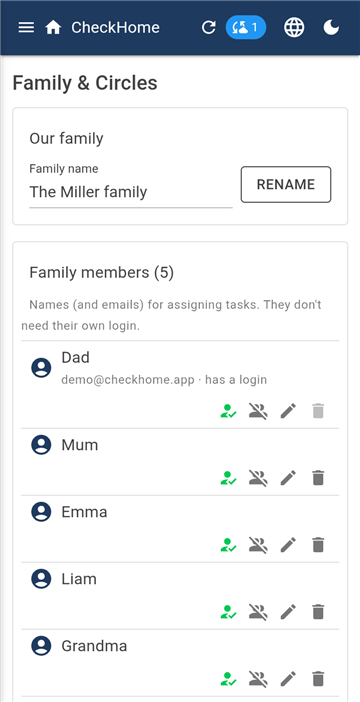
Family & Circles — members
The Family & Circles module holds your
family code. Send it to someone close; once they install the
app and enter the code, they join your family and see the shared data.
These are two separate things and you need to hand over
both:
The family code — says which family to join. On its
own it unlocks nothing.
The family password — unlocks the content. Pass this
one on in person, or at least through a different channel than the code.
Example. You text your partner the code and tell them the password
at home. They sign in with their own e-mail, enter the code, then the family
password — and from that moment they see what you see.
Below the members is a list of family people. These are the
names that tasks and points are assigned to. They do not need their own
sign-in — a small child without a phone can simply be a name on the list.
4. Today
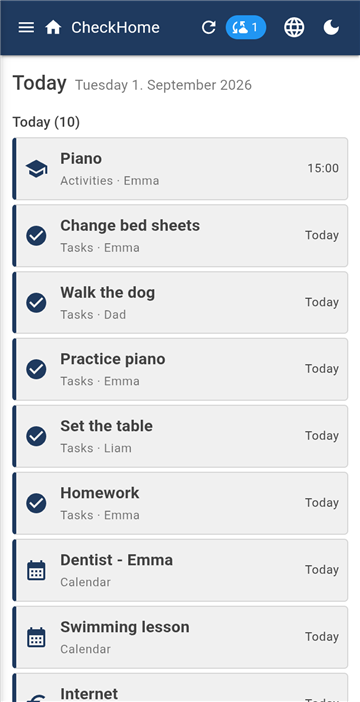
Today — the day's agenda
Today is the opening screen and the only module
without tabs. Nothing is entered here — it collects what is
entered elsewhere and shows what is coming.
Today is at the top, Coming up below it. Each row tells you
which module it came from and who it concerns — for example
Activities · Emma or Tasks · Liam.
You can tick a task off right here, without going into the Tasks module.
An empty screen is not a fault — it means nothing is due today or in the
next few days.
5. Shopping
Three tabs: Shopping · Planning ·
Manage.
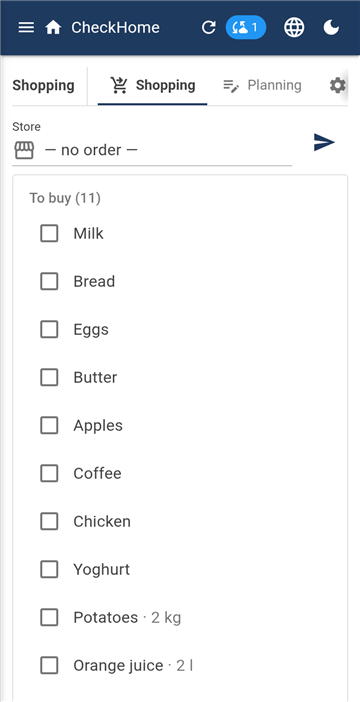
Shopping — for standing in the shop
Shopping is the in-the-shop mode. The list is split into
To buy and In basket; a tap moves an item across. Large type,
nothing to distract you.
When you finish, items are archived rather than deleted.
That is what lets the app suggest them next time you start typing — the
autocomplete draws on your own history as well as a built-in list of everyday
groceries.
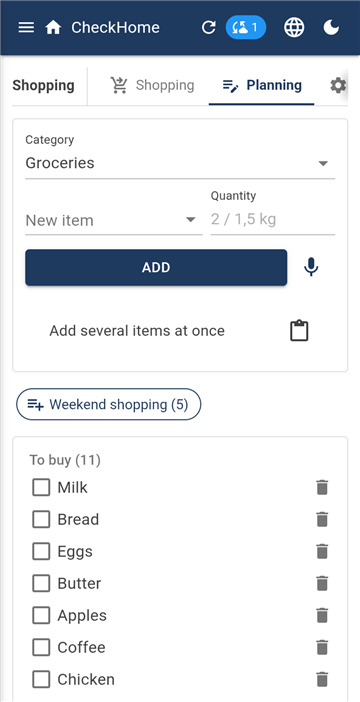
Planning — entry and categories
Planning is where items are added and sorted into
categories (Groceries, Household, DIY store…). You edit the categories in the
Manage tab.
Example. During the week anyone in the family adds what is running
out. On Saturday whoever goes shopping opens
Shopping and ticks things off. The others see in real
time what is already in the basket and can add something they remembered.
Sorting by shop
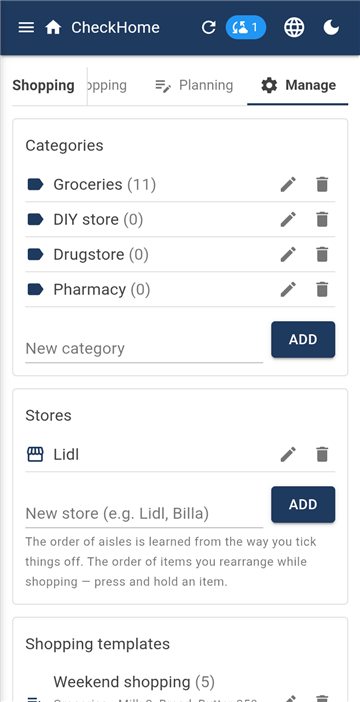
Manage — categories, stores, templates
Walking up and down the aisles is a waste of time when the list can follow
the route you take through the shop. In the Manage
tab you add a store profile — Lidl, Tesco, Aldi — and pick it
when you go shopping. Items are then sorted in the order you walk the
shop, not alphabetically and not by when they were added.
You do not have to set the aisle order up. The app
learns it from the way you tick things off. The first time you
walk through Lidl ticking off bread, then dairy, then vegetables and finally
household goods, the next list for that shop comes in exactly that order. Each
shop keeps its own order, because vegetables are not in the same place in one
chain as in another.
Rearranging by hand
When the shop moves something around, or the learned order does not suit you,
press and hold an item and drag it somewhere else. You do this
while shopping rather than in the settings — that is, at the moment you are
standing in front of the shelf and can see how it ought to be.
With no shop selected (the — no order — option)
items stay in the order they were added. That is fine for a short run to the
corner shop; for a big weekly shop it is worth setting a store up.
What else the module does
Quantity on an item — "milk 3".
Finish shopping — the button has to be held for three seconds.
Ticked items are removed, unticked ones stay for next time, so
nothing is lost.
Send the list — the current category or all of them. The list
is copied so you can paste it into a message to anyone, even someone without the
app.
Shopping templates — a standing list of items (Weekend
shopping, Breakfast) that you tip into the list in one tap.
Visibility — a new item can be hidden from selected members,
so a present does not catch the children's eye.
6. Tasks
Five tabs: List · To-do ·
Entry · Statistics ·
Manage.
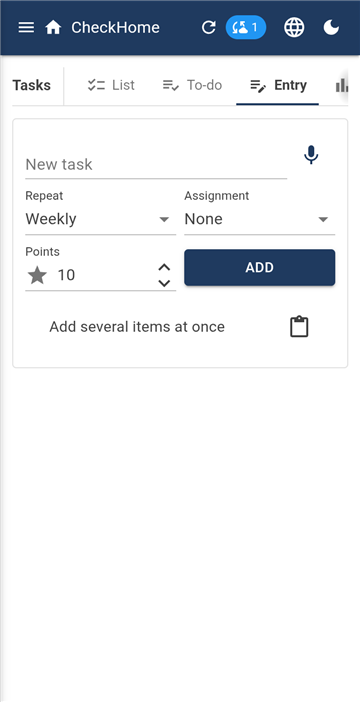
Entry — repetition and assignment
A task has a name, a due date and a repetition: once,
daily, weekly, monthly, or on chosen days (say Monday,
Wednesday and Friday only). Once it is done, the app works out the next date
itself.
Who should do it
Nobody in particular — whoever has time.
One member — the task is always theirs.
Rotation — you pick several members in order, and
after each completion the task moves to the next one. No more arguing
about whose turn it was to take the bins out.
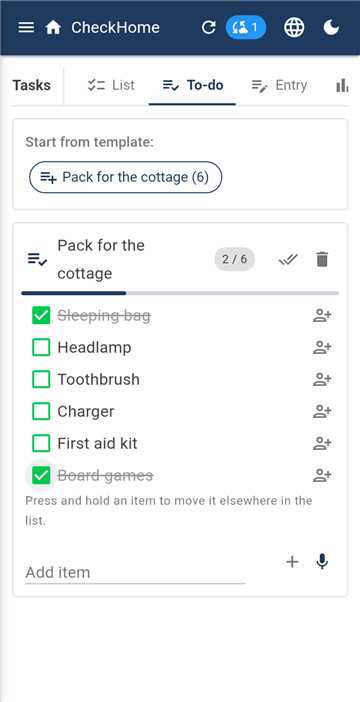
To-do — checklists from templates
To-do is for one-off checklists that recur with an occasion
rather than with a date — packing for a weekend away, getting ready for a
holiday, moving house. In Manage you create a
template (say "Pack for the cottage": sleeping bag, head
torch, toothbrush, charger, medicines) and start it from To-do as many times
as you like.
An item can be assigned to one person or to several at once.
If several people have it, each ticks off their own part and the item is done
only when everyone has. Everyone packs their own socks; one person packs
the dog's bowl.
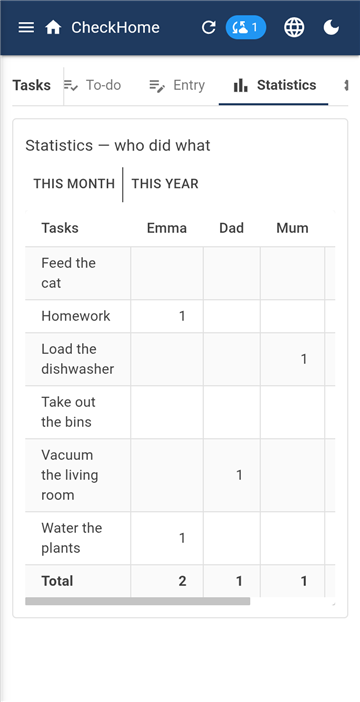
Statistics — who did how much
Statistics shows a task × member table for the month or the
year. It is there to help split the work fairly, not to nag — and with children
it pairs with the Rewards module.
7. Calendar
Four tabs: List · Overview ·
Entry · Manage.
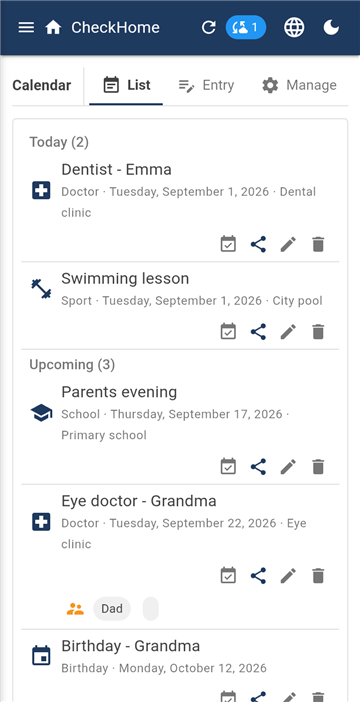
List — what is coming and what has passed
List separates events into Coming up and
Past, each with its type, date and place. Add to Google
Calendar copies an event into your phone's calendar — it is a one-tap
export, not a running synchronisation.
Overview is a table by week or by month
with ISO week numbers and arrows to move backwards and
forwards. Useful when you are agreeing a date "in week 37".
In Manage you define your own event
types — School, Doctor, Birthday, Sport — so the list can be read at
a glance.
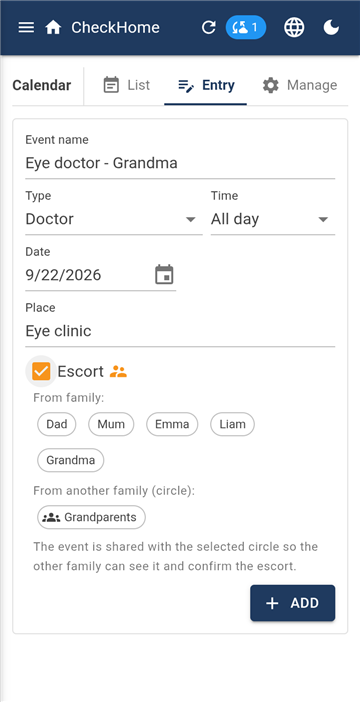
Escort — who takes the child there
Escort answers the question "who is taking them". On an
event you ask for an escort and choose whether you are looking
within the family or in another family — a grandmother or an
aunt who shares a circle with you.
When you pick another family, the event is shared with that circle
automatically, because otherwise the other side could not see it and
would have nothing to confirm. The status ("grandma is taking her") shows on
both sides.
8. Maintenance
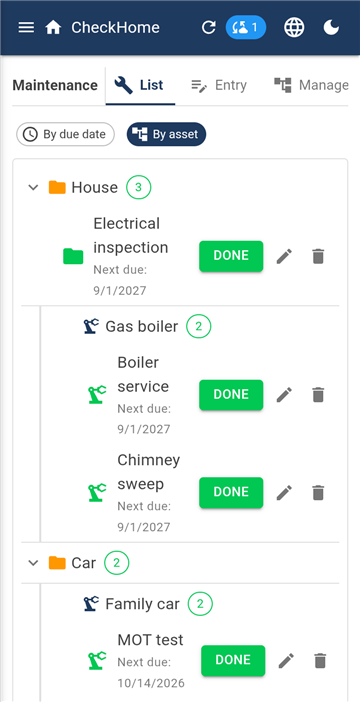
Three tabs: List · Entry ·
Manage.
List — grouped by asset
Maintenance watches everything that expires: inspections, MOT and emissions
tests, services, insurance policies, motorway vignettes.
The interval is set in time or in kilometres. A car service
after 15,000 km or after a year — whichever comes first. A gas boiler
inspection once a year. A vignette to a fixed date.
In Manage you build a tree of
assets: categories with specific things under them, nested as deeply
as you like. For instance House → Gas boiler → Burner or
Cars → Octavia. A job is then pinned to a specific asset and the list
shows the whole path.
Each entry can also have a person responsible.
9. Planned payments
Four tabs: List · Entry ·
Overview · Manage.
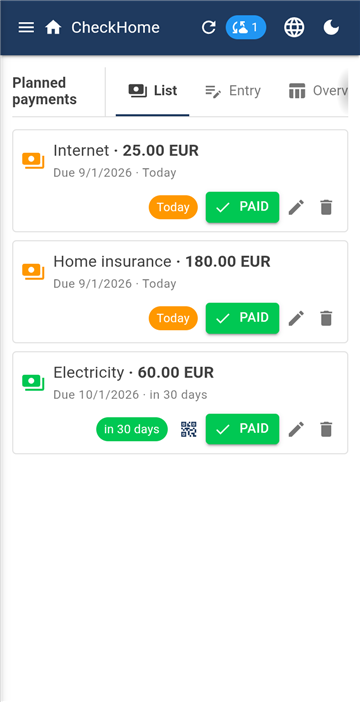
List — what needs paying
This module is not a replacement for your banking app and
deliberately does not track where you spent your money. It does something else:
it keeps sight of payments that are coming and reminds you until you confirm
them.
A payment has an amount, a payee, a repetition (monthly, quarterly, yearly,
one-off) and a due date. The colour of the row tells you whether it is overdue,
urgent, or fine.
Monthly payments can skip individual months. The typical
case: no gas payment in March, because that is when the annual statement
arrives.
The Paid button confirms a payment and moves it on to the next
period.
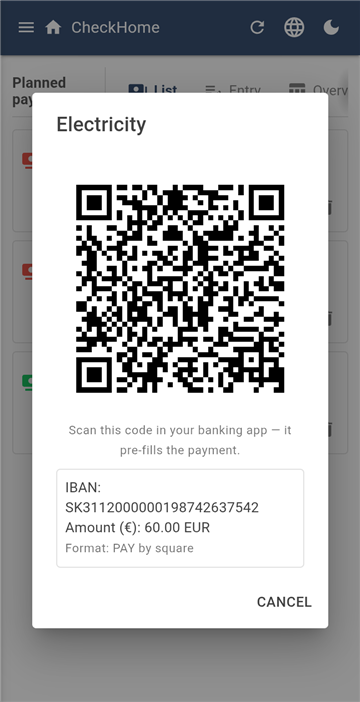
A QR code straight into your bank
If you fill in an IBAN, the app generates a payment QR code
for it. Scan it in your banking app and the transfer is pre-filled — amount,
account and the message for the payee.
Variable, constant and specific symbols are filled in for Slovak and Czech
payments; banks elsewhere do not use them.
The IBAN is checked as you type, so a typo is caught here rather than at
the bank.
Overview is a table of months and categories — a forecast
of your costs for the whole year ahead.
10. Recipes
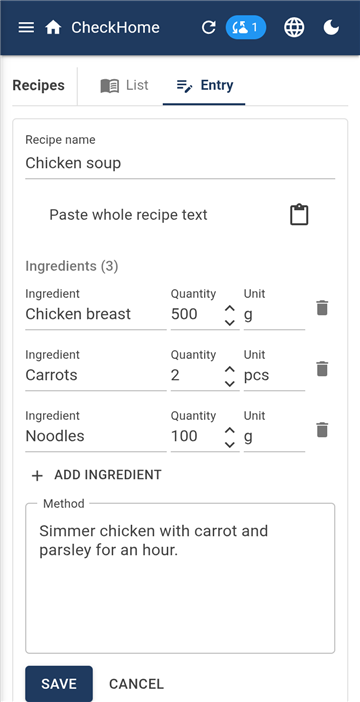
A recipe with its ingredients
Two tabs: List and Entry.
A recipe has ingredients, a method and a photo.
A useful link: ingredients can be sent to the shopping list in one
tap. You pick what you do not have at home and it lands in Shopping.
A recipe you see in another family's circle can be
copied to your own — you get your own version, which you are
free to change.
11. Activities
Overview — the weekly timetable
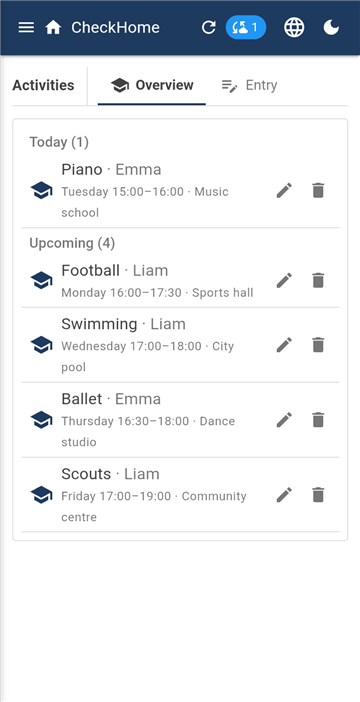
Children's regular commitments: football on Tuesday at half past four,
piano on Thursday at three. Enter the activity, the child, the day and the time
— and you have the family's weekly timetable on one screen.
The next activity also appears on the Today screen, so
in the morning you can see where everyone is going.
12. Rewards
Leaderboard and reward catalogue
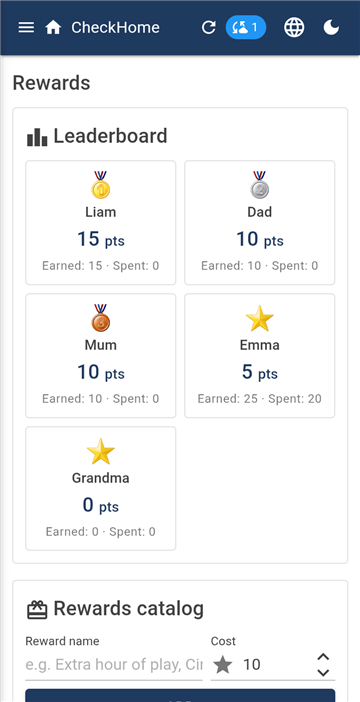
Children earn points for completed tasks. In the
reward catalogue you decide what those points buy and what it
costs — an extra hour of gaming, the cinema, an ice cream.
When a child redeems a reward, the points are deducted and the exchange stays
in the history. The leaderboard shows who has collected how
much.
Set the prices before you show the system to the children.
You can raise them later, but it is a hard conversation.
13. Password vault
A safe place for passwords, inspection reports, warranties and contracts. Three tabs:
List · Entry ·
Manage.
Why there is no screenshot here. The vault is marked so that
Android refuses to capture or record it — a screenshot comes out black. That applies
to us as well, which is why this chapter has no picture.
The vault differs from the other modules in one important way: each person
has their own key. The rest of the content is shared with the family; passwords
are not — they are yours. They are unlocked with your fingerprint.
Emergency access
Passwords nobody else can read have a flip side: if something happens to you, they are
lost. That is what emergency access is for.
You nominate a trustee and a waiting period in days. When the trustee
asks for access, you get a notification and can deny it with one tap
during that period. If you do not react, access is released when the period ends.
The key is split into three shares — the trustee, the server and a printed
sheet — and any two of them are enough. Print the paper share and keep it away
from your phone; it is shown once and stored nowhere. With it, the passwords can be
reached even if our server were down.
14. Children and who sees what
A child's account without an e-mail
A child needs no e-mail address and nothing to remember. In
Family & Circles you create an account for them and get a
pairing code. On the child's phone open
Account / sign-in → Sign in a child with a code, enter
the code and the family password once. The phone stays signed in from then on.
The pairing code is shown only once and stored nowhere. If you
close it before entering it, simply generate a new one.
If a child has no phone of their own, do not create an account — tasks, points and
activities work regardless, as long as they are on the list of family people as a name.
Limits on children's accounts
For each child you can set:
which modules they see — Module access;
Planned payments is the usual one to hide;
whether they may tick off their own tasks, or whether a parent
has to confirm.
Visibility of individual entries
Separately from modules, an individual entry can be hidden. When
entering an event or a payment, switch Who can see this from
Everyone to Only selected and tick who. The others do not receive that
entry at all — it is not merely hidden from view.
Example. You put a Christmas present in the calendar so that only you and
your partner can see it.
15. Circles — sharing between families
A family circle
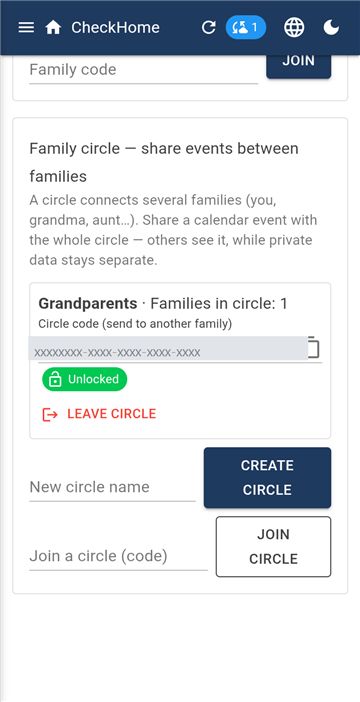
A family is closed — nobody outside it sees in. But when you want to share
something with a grandmother or a sister who has a family of their
own, that is what a circle is for.
You create a circle in Family & Circles. You get
a circle code to send to the other families, and you set a
circle password — that is what encrypts whatever is shared in
the circle. The circle password is different from the family one; tell it to the
other families in the circle.
What gets shared
Only what you explicitly send there. What is shared is a
calendar event — you tap Share with circle and choose which
one. A family's private data (tasks, shopping, payments, vault) is not in the
circle and cannot get there.
A behaviour that catches people out. Sharing reaches
only the families that are in the circle at the moment you
share. Anyone who joins later will not see an older event until
you share it again.
Members can be hidden too: for each family person you choose whether the
other families in the circle can see them.
16. Notifications
Notifications
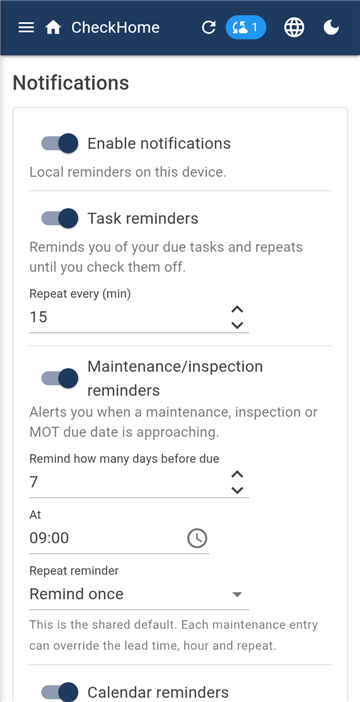
Reminders are switched on separately for tasks, maintenance, calendar
and payments, so you keep only the ones you actually want.
For tasks and payments you set the repeat — how often the app
should keep reminding you until the thing is done or confirmed. For maintenance
and the calendar you set how many days in advance to warn you,
so there is time to book an appointment.
Quiet hours stop it beeping at night.
The Test notification button confirms that your phone's own settings
actually let them through.
17. Settings and cleanup
Cleanup
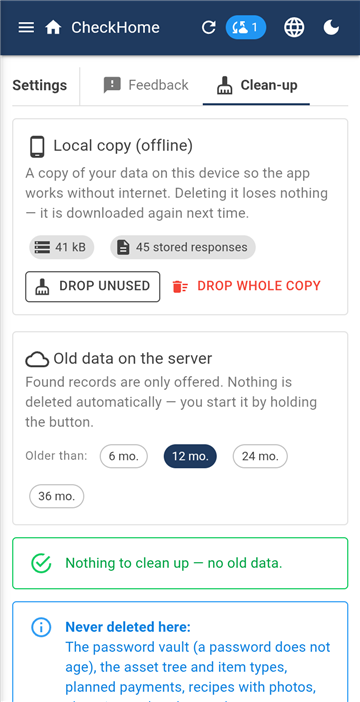
The Settings module has three tabs.
Feedback — where you write what is broken or missing. The app
also sends automatic error reports here: the type of error, the screen and the
version, never the content of your family's data.
This is the one place in the app where text is not encrypted
— otherwise we would have no way to read a report and deal with it. Do not put
passwords or sensitive details here.
Cleanup — bulk deletion of old entries, module by module. At
the bottom of this tab you will also find account deletion,
described in full on the Account deletion page.
18. Language, dark mode, Windows
Language menu — 26 languages
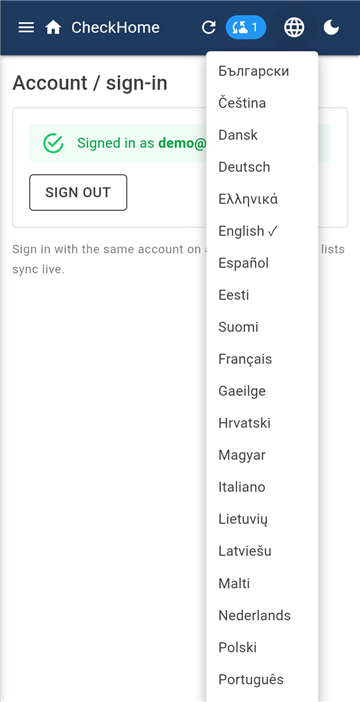
The globe icon at the top right switches between 26 languages:
every official EU language, plus Norwegian and Icelandic. On first run the app
takes your phone's language; once you pick one yourself, your choice wins.
The date format and the names of days and months follow the
language.
Next to it is the light/dark toggle.
The Windows version is included in the subscription and is not
sold separately. You sign in with the same account, enter the family password and
have the same data. It is handy for longer stretches of typing — setting up
payments or a tree of assets is quicker on a keyboard.
19. Subscription
The first month is free, then EUR 9.99 a year for the whole family —
every member and every device they own. You do not pay per person or per phone.
The subscription is taken out and managed in Google Play, and can be cancelled there at
any time. Cancel during the free month and nothing is charged.
When a subscription ends, the app locks but your data waits for 30 days.
Renew within that window and everything is back. If you do not, it is deleted for good.
20. What is and is not encrypted
Module content is end-to-end encrypted with a key derived from your
family password on your own phone. The server sees only unreadable text — neither we nor
anyone who got into the database can read it.
Not everything is encrypted, though, and we would rather say so plainly.
Stored readably are the names of family members and their e-mail
addresses, the family name, the names of circles, and any feedback you send us. The app
needs them to assign things to people and to link families together.
The exact and complete breakdown is in our
Privacy policy.
 CheckHome